
Data Migration Toolkit for Splunk
Everything you need to install the free toolkit and move Splunk Enterprise data from one deployment to another, with a plan you can review before anything moves and a report that proves nothing was lost. Every step says what to click and what to type.
1. Overview
What the toolkit does
The Data Migration Toolkit for Splunk moves indexed data (the buckets on your indexers) from one Splunk Enterprise deployment, the source, to another, the target. It handles:
- Windows to Linux, or Linux to Windows
- A single server or separate indexers to an indexer cluster
- An indexer cluster to a single server or to separate indexers
- Cluster to cluster, including into a cluster that already holds data
- Several deployments merged into one
- Like for like moves to new hardware or a new data center
These combine: for example a Windows deployment with two indexers can move to a Linux cluster in one plan.
How a migration works
Every migration goes through the same steps. The first two only read; nothing changes until you have reviewed the plan.
Then comes the cutover: forwarders switch to the target, the newest data is copied in a short top up (the delta), and a final validation proves the result. Until you retire the source, rolling back means pointing the forwarders back at it.
The pieces
| Piece | What it is | Where it runs |
|---|---|---|
The Splunk app (ase_migration) | One package that holds everything below except the online planner. Free. | Splunk servers, or unpacked on any computer with Python |
| smig | The command line program inside the app (bin/smig_cli.py). Every step can be run with it. | Any computer with Python 3.7 or later, including Splunk’s own Python |
| Setup and run page | A page inside the app where you fill in a form and run discovery, the plan and validation with buttons, no command line needed. | A Splunk search head or single server with the app installed |
| The agent | A read only part of the app that checks bucket folders on an indexer’s disk during discovery (missing journals, paths in .conf files, free disk). | Source indexers (optional) |
| Dashboards | Progress, plan review, readiness and validation dashboards inside the app. | The controller search head |
| Online planner | A page on augustschell.com that builds the same plan from a discovery file, in your browser. Useful for scoping before installing anything on the target. | Your web browser |
What each step touches
| Step | Changes |
|---|---|
| discover, validate, plan, target-template, report | Nothing. Searches and REST calls only; files are written on the computer running smig. |
| export, serve, pull | Nothing on Splunk. They read bucket folders and write to a staging folder you choose. |
| import | The target indexer only, while its Splunk is stopped. Checks every file, never overwrites anything. |
| roll-hot | The source, once, at cutover: closes the newest buckets so they can be copied, which Splunk also does on its own. Needs --yes. |
2. Before you start
Requirements
| Item | Requirement |
|---|---|
| Splunk | Splunk Enterprise 9.0 to 10.x on source and target. The target must run the same version as the source or a newer one. |
| Accounts | An admin account on the source search head (or single server), and on the target search head. |
| Shell access | A command prompt (SSH, Remote Desktop or console) on each source indexer to export, and on each target indexer to import. Discovery, planning and validation do not need it. |
| Disk | A staging folder on the source side and on each target indexer, about as large as the data that moves. The plan tells you the exact size. |
| Network | See the ports below. |
| Python | Nothing to install on Splunk servers (the toolkit uses Splunk’s Python). To run it from a laptop: Python 3.7 or later. |
Network ports
| Port | From | To | Used for |
|---|---|---|---|
| 8089 | The computer running smig | Source and target search heads and indexers | Discovery, roll-hot, validation (Splunk’s management port) |
| 8443 | Target indexers | The source host running smig serve | Built in file transfer. Optional: any copy method works. |
| 8088 | Every host running smig | The controller search head | Progress events (HTTP Event Collector). Optional. |
| 9997 | Forwarders | Target indexers | Normal Splunk data, after cutover |
Fill in this worksheet
Write these down before you begin. Every guide below asks for them.
| Question | Example |
|---|---|
| Source search head (or single server) address, port 8089 | https://splunk-old.example.com:8089 |
| Source admin user | admin |
| Source indexers (names as Splunk shows them) | WIN-SPLUNK01 |
| Source operating system and SPLUNK_HOME | Windows, C:\Program Files\Splunk |
| Target layout | Single server, separate indexers, or indexer cluster |
| Target search head address and admin user | https://splunk-new.example.com:8089, admin |
| Target indexer names, operating system and SPLUNK_HOME | lnx-splunk01, Linux, /opt/splunk |
| Target Splunk version | 10.0.1 |
| Staging folder on the source and on the target | D:\smig_staging and /data/smig_staging |
| Indexes to move (or all) | All non internal indexes |
| How forwarders are managed | Deployment server, or outputs.conf by hand |
| Change window for the cutover | Saturday 06:00 to 08:00 |
3. Install the app
Where to install it
| Server | Install? | Why |
|---|---|---|
| The controller: the search head you will work from (usually the target search head) | Yes | Setup and run page, dashboards, progress index |
| Target indexers | Yes | To run import, and to create the ase_migration index for progress events |
| Source indexers | Yes, to export | To run export, and for the extra on host checks during discovery |
| Source search head | No | Discovery only uses its REST API |
Installing the app does not restart Splunk: it adds read only endpoints, the Setup and run page and an empty ase_migration index, and Splunk loads them while it runs, so indexing carries on. The one exception is cluster peers, where the cluster manager may do a rolling restart when it pushes the bundle (see Install on indexer cluster peers).
If your change policy does not allow new apps on a source indexer, you can still run smig there by unpacking the package into any folder (see Run smig without installing).
Download the package
- Get the latest version: Request the app. You get a file named like
ase_migration-0.7.2.tgz. - Do not unpack it. Splunk installs the
.tgzfile as it is.
Install on a search head or single server (Splunk Web)
- Sign in to Splunk Web as an admin.
- At the top left, click Apps, then Manage Apps.
- At the top right, click Install app from file.
- Click Choose File and select
ase_migration-0.7.2.tgz. - If an older version is installed, tick Upgrade app.
- Click Upload.
- Click Apps. You now see Data Migration Toolkit for Splunk in the list. No restart is needed. If an older Splunk version still asks for one, click Restart Now.
Install on a server from its command line
Use this on indexers, which often have no Splunk Web. Copy the .tgz file to the server first.
sudo -u splunk /opt/splunk/bin/splunk install app /tmp/ase_migration-0.7.2.tgz -update 1
& "C:\Program Files\Splunk\bin\splunk.exe" install app C:\Temp\ase_migration-0.7.2.tgz -update 1
Run PowerShell as Administrator.
Splunk asks for an admin user name and password. If your Splunk runs as a different user than splunk, use that user. No restart is needed.
Install on indexer cluster peers
Cluster peers get apps from the cluster manager. On the cluster manager:
- Unpack the package into the folder the manager pushes to peers:
cd /opt/splunk/etc/manager-apps
sudo -u splunk tar xzf /tmp/ase_migration-0.7.2.tgz
On Splunk older than 9.0 the folder isetc/master-apps. - Check and push the bundle:
sudo -u splunk /opt/splunk/bin/splunk validate cluster-bundle --check-restart
sudo -u splunk /opt/splunk/bin/splunk apply cluster-bundle --answer-yes
The check tells you whether the peers will need a rolling restart for this bundle. If they will, push it in a quiet period; the cluster restarts the peers a few at a time and keeps searching. - Watch Settings > Indexer Clustering on the cluster manager until every peer shows the new bundle.
Run smig without installing (laptop or jump host)
Discovery, planning and validation only need network access to port 8089, so you can run them from your own computer. You need Python 3.7 or later (python3 --version, or python --version on Windows).
mkdir ~/smig && cd ~/smig
tar xzf ~/Downloads/ase_migration-0.7.2.tgz
python3 ase_migration/bin/smig_cli.py --version
mkdir $HOME\smig; cd $HOME\smig
tar xzf $HOME\Downloads\ase_migration-0.7.2.tgz
python ase_migration\bin\smig_cli.py --version
Windows 10 and later include tar. Get Python from python.org if python --version fails.
You see smig 0.7.2.
Check the installation
- In a browser, open
https://server:8089/services/ase_migration/agent/info?output_mode=json, replacing server with the server’s name. - Your browser warns about the certificate the first time; continue to the page. Sign in with a Splunk admin account.
- You see a short JSON document. Check that
agent_versionsays0.7.2.
Upgrade
Install the new package the same way with Upgrade app ticked (Splunk Web) or -update 1 (command line), on every server where the app is installed. Settings and job history on the Setup and run page are kept.
4. Permissions
| Task | Needs |
|---|---|
| Discovery and validation | An admin account on the search head. They search across every indexer and list every user’s knowledge objects. |
| Setup and run page | The ase_migration_admin capability. The admin role has it. |
| On host checks on source indexers (the agent) | The ase_migration_read capability. The admin role has it, and the app adds a small ase_migration role with only what the agent needs. |
| Import | The operating system user that owns SPLUNK_HOME (often splunk), or root / Administrator. |
Give another role access to the Setup and run page
- In Splunk Web, click Settings > Roles.
- Click the role, for example
splunk_ops. - Open the Capabilities tab and type
ase_migrationin the search box. - Tick
ase_migration_adminand click Save.
Optional: a service account for the indexer checks
If you do not want to use an admin password on the source indexers, create a limited account on each one:
- On the source indexer, click Settings > Users > New User.
- Name:
smig_agent. Set a password. Under Assign role, choosease_migrationand removeuser. - Click Save. Enter this account under Indexer credentials on the Setup and run page, or pass
--agent-user smig_agentto discover.
5. Progress reporting (optional)
Every smig command writes progress events. On a server with the app installed they go to a local file that the app reads, so the dashboards on that server fill in by themselves. To see the progress of exports and imports running on other servers in one place, send their events to the controller with the HTTP Event Collector (HEC).
Create the HEC token on the controller
- In Splunk Web on the controller, click Settings > Data inputs > HTTP Event Collector.
- Click Global Settings. Set All Tokens to Enabled and click Save.
- Click New Token. Name:
smig. Click Next. - Source type: click Select, then type
smig:event. - App context: Data Migration Toolkit for Splunk.
- Allowed indexes: add
ase_migration. Default index:ase_migration. - Click Review, then Submit. Copy the Token Value.
Tell smig to use it
On each server where you run smig, set two variables before running commands, in the same window:
export SMIG_HEC_URL=https://splunk-new.example.com:8088
export SMIG_HEC_TOKEN=paste-the-token-value
$env:SMIG_HEC_URL = "https://splunk-new.example.com:8088"
$env:SMIG_HEC_TOKEN = "paste-the-token-value"
If the controller uses a self signed certificate, add --hec-insecure to each command. To check that events arrive, search on the controller:
index=ase_migration sourcetype=smig:event | stats count by event
Reporting never stops a migration. If HEC was unreachable, events wait in $SPLUNK_HOME/var/log/smig/smig_events.log; send them later with smig events-replay.
6. The Setup and run page
The Setup and run page is the easiest way to work. You describe the migration once in a form, then run discovery, the plan and validation with one button each. These steps only read Splunk. Moving the data (export, transfer, import) changes servers, so it still runs from a command prompt on those servers; the page shows you the exact commands.
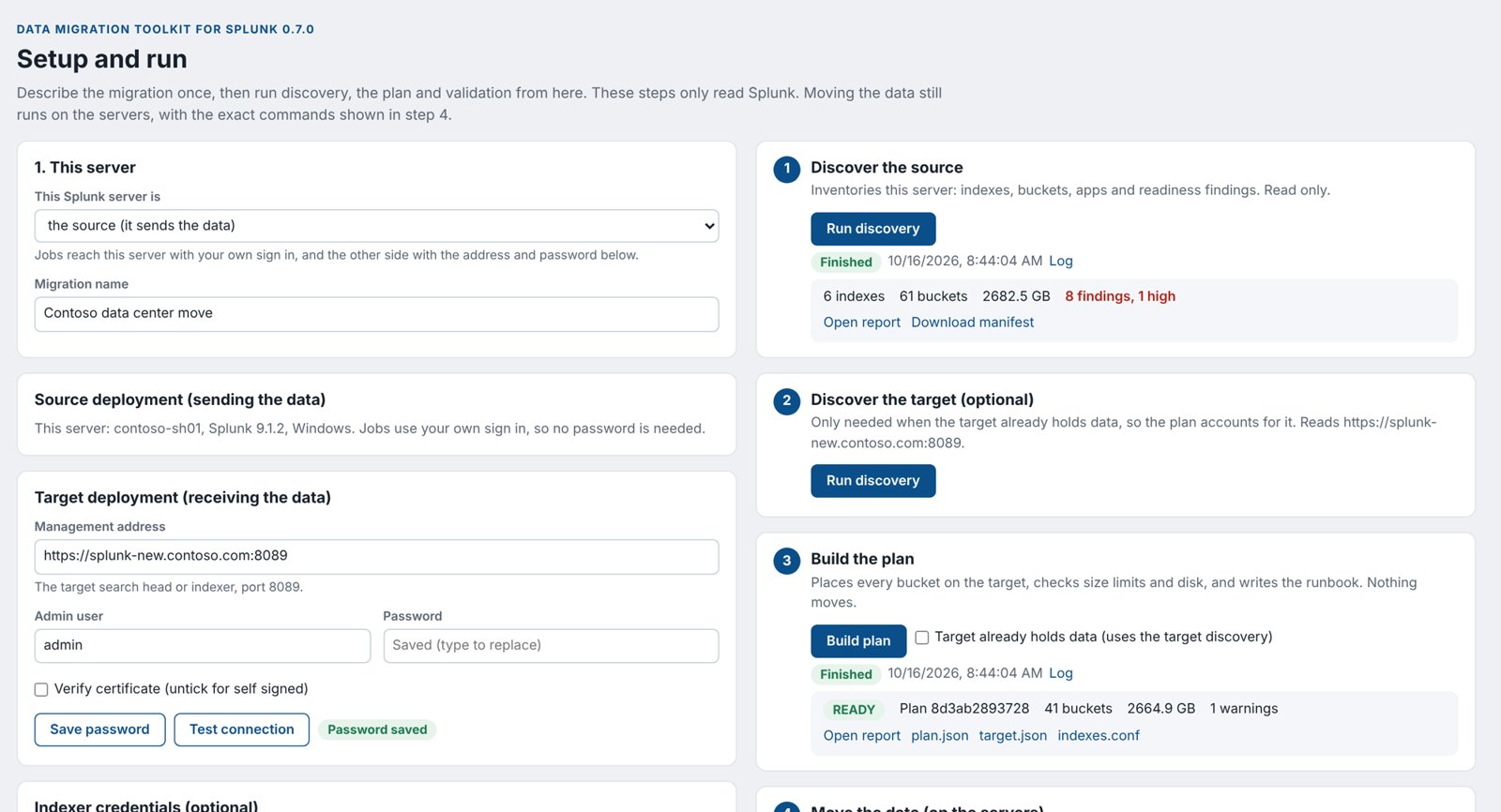
Open the page
- Install the app on the server you will work from (see Install the app). This is usually the target search head, or the target server if the target is a single server.
- In Splunk Web, click Apps > Data Migration Toolkit for Splunk.
- In the menu bar of the app, click Setup and run.
ase_migration_admin, sign in as an admin or see Give another role access.Card 1: This server
| Field | What to enter |
|---|---|
| This Splunk server is | Choose the target (it receives the data) if you installed the app on the new deployment, which is the usual case. Choose the source (it sends the data) if you are on the old one, or neither: it only runs the toolkit for a separate admin server. |
| Migration name | A friendly name, for example Datacenter move 2026. It appears on the reports. |
The server you choose here is reached with your own sign in, so it needs no password. The other side needs an address and a password.
Cards: Source deployment and Target deployment
The card for this server just shows its name and version. In the card for the other side:
- Management address: type the address of the other side’s search head (or single server) with port 8089, for example
https://splunk-old.example.com:8089. - Admin user: type an admin account on that side, for example
admin. - Password: type its password and click Save password. A green Password saved label appears. The password is stored in Splunk’s encrypted credential store, never in a file.
- Verify certificate: leave it unticked if the other side uses Splunk’s default (self signed) certificate. Tick it if it has a certificate your organization trusts.
- Click Test connection. You should see Connected: server name, Splunk version. If not, see Connection problems.
Card: Indexer credentials (optional)
Discovery asks the app on each source indexer to check bucket folders on disk. Leave this card empty to use the same login as the source. Fill it in if the indexers use different accounts, for example the service account. Type the User and Password and click Save password.
Card 2: Target layout
| Field | What to enter |
|---|---|
| Operating system | The target’s: Linux or Windows. |
| Layout | Single instance (one server does everything), Indexers, not clustered, or Indexer cluster. |
| Splunk version | The version installed on the target, for example 10.0.1. Test connection on the target card fills it in for you. If you also run Discover the target, the plan uses the version discovery found and warns when this field differs. |
| Target indexer(s) | One row per target indexer. Indexer host name: a name for it, for example lnx-splunk01. You type this same name later in the import command. Splunk home: its SPLUNK_HOME. Free disk GB: optional; when filled in, the plan checks the data fits. Left empty, the plan uses the free disk that Discover the target found, and the plan report marks it (discovered). Click Add indexer for more rows. |
| Cluster manager, Replication factor, Search factor | Indexer cluster only. The manager’s address and the cluster’s RF and SF. |
| A lab run proved this cluster version adopts copied buckets | Indexer cluster only. Leave unticked until you have done the lab check. Plans for a cluster stay blocked until it is ticked. |
| Which target indexer receives each source indexer | Indexers, not clustered only. One line per source indexer: WIN-IDX01=lnx-idx01. |
| Only these indexes | Leave empty to move every non internal index, or list the ones to move, separated by commas. |
| Leave out these indexes | Indexes to skip, separated by commas. |
| Index size limits on the target (maxTotalDataSizeMB) | Usually empty at first. If the plan says an index would be over its size limit, click Use the sizes the plan needs or type index=MB lines yourself. |
| Rename indexes on the target | One line per rename: old=new. Linux and current Splunk need lowercase index names; the page suggests a name, or asks you for one when the lowercase name is taken. |
| Also migrate internal indexes | Usually unticked. Internal indexes (_internal, _audit and others) belong to each server. |
| Index paths on the target | Click to open. The default $SPLUNK_DB/{index}/db fits most targets. {index} is replaced by each index name. |
Card 3: Transfer and validation
| Field | What to enter |
|---|---|
| Staging folder on the source | A folder with enough free space on the source indexers, for example D:\smig_staging. It is filled into the export commands. Left empty, the commands use C:\smig_staging on Windows and /opt/smig_staging on Linux. |
| Staging folder on the target | The same for the target indexers, for example /data/smig_staging. On Linux, the user that runs Splunk (usually splunk) must own it; the import step in step 4 starts with that chown. |
| Transfer port | 8443 unless your firewall needs another port. |
| Validate up to (excluding) | Leave empty at first. For the final validation, set the cutover day. |
| Allowed shortfall per index, % | 0. Every event must match. |
Click Save settings at the bottom. It says Saved.
Step 1: Discover the source
- On the right, under 1 Discover the source, click Run discovery.
- The status shows Running. Small deployments finish in seconds; large ones can take several minutes. Click Log to watch.
- When it says Finished, you see the number of indexes, buckets, the size, and the number of findings.
- Click Open report. Read the findings at the top. Anything marked HIGH must be dealt with; see Readiness findings.
- Click Download manifest and keep the file. It is the record of the source as it was.
2 Discover the target (optional) is only needed when the target already holds data you are keeping. Then tick Target already holds data in step 3.
Step 3: Build the plan
- Under 3 Build the plan, click Build plan.
- If the page shows Target setup is incomplete, it lists what to fill in. Fix it in the cards on the left, click Save settings, and click Build plan again.
- When it finishes you see READY or BLOCKED, the plan ID, the number of buckets and the size.
- If BLOCKED, read the red list. The usual fixes:
- An index would hold more than its size limit: click Use the sizes the plan needs under Index size limits, then Save settings.
- An index needs a lowercase name: add a line under Rename indexes on the target.
- Others: see Plan blockers.
- When READY, click Open report and review it with whoever approves the change.
- Click plan.json. It saves as
plan-id.json. Every export and import command uses this file, so copy it to each source and target indexer. - Click indexes.conf to get the index definitions for the target (see Prepare the target).
Step 4: Move the data
Step 4 lists every command in order, grouped as Prepare, Copy history and Cutover, each with the server it runs on and a Copy button. Your staging folders and transfer port are already filled in. Follow them with the detailed guides in Export, Transfer and Import, or with Example 1.
Step 5: Validate
- After the import, start the target indexers and wait until they are up.
- Under 5 Validate, click Run validation.
- When it finishes you see PASS, WARN or FAIL and the counts. Click Open report for the details per index and per day.
Jobs, logs and files
- Log shows what a job is doing, live. Cancel stops a running job.
- Job history at the bottom lists the last jobs. The newest finished discovery and plan are the ones the next steps use.
- A job shown as lost was interrupted by a Splunk restart. Run it again.
- Settings and job files are kept on the server in
$SPLUNK_HOME/var/lib/ase_migration/console. The last 40 jobs are kept. - The Readiness, Plan review and Validation dashboards show the same results.
7. Using smig on the command line
Every step can be run with smig. The Setup and run page uses the same program behind the scenes, so the results are identical.
How to type a smig command
smig is the Python file smig_cli.py inside the app. On a Splunk server, run it with Splunk’s own Python. To save typing, define a short name smig once per window:
On a Splunk server (run as the user that owns Splunk, usually splunk):
alias smig='/opt/splunk/bin/splunk cmd python3 /opt/splunk/etc/apps/ase_migration/bin/smig_cli.py'
smig --version
On a laptop or jump host where you unpacked the package into ~/smig:
alias smig='python3 ~/smig/ase_migration/bin/smig_cli.py'
On a Splunk server, in PowerShell run as Administrator:
function smig { & "C:\Program Files\Splunk\bin\splunk.exe" cmd python3 "C:\Program Files\Splunk\etc\apps\ase_migration\bin\smig_cli.py" @args }
smig --version
On a laptop where you unpacked the package into $HOME\smig:
function smig { python "$HOME\smig\ase_migration\bin\smig_cli.py" @args }
The rest of this guide writes commands as smig .... Run smig command --help to list every option of a command.
\ at the end of a line (Linux). In PowerShell, use a backtick ` instead, or type the command on one line.Passwords and tokens
Never put a password on the command line. Two safe ways:
- Give only
--user admin. smig asks for the password and does not show it as you type. - For several commands in a row, put it in a variable once and pass the variable’s name:
read -s -p "Source password: " SRC_PW; export SRC_PW
smig discover --url https://splunk-old.example.com:8089 --user admin --password-env SRC_PW ...
$env:SRC_PW = Read-Host "Source password" -MaskInput
smig discover --url https://splunk-old.example.com:8089 --user admin --password-env SRC_PW ...
-MaskInput needs PowerShell 7. In Windows PowerShell 5, type $env:SRC_PW = "..." and close the window when done.
Certificates
Splunk’s management port uses Splunk’s own certificate unless your team replaced it. If smig stops with CERTIFICATE_VERIFY_FAILED, either add --insecure (the connection is still encrypted, but the certificate is not checked) or pass your organization’s CA file with --ca-file ca.pem. For validate the options are --source-insecure and --target-insecure.
Files smig creates
| File | Made by | What it is |
|---|---|---|
source.json | discover | The manifest: inventory of the source. No event data. |
source.html | discover | Readiness report with the findings |
target.json | target-template, then you edit it | The target spec: what the target looks like |
plan-id.json | plan | The plan: every bucket, where it goes, its new name. Used by export and import. |
plan.html | plan | Dry run report: READY or BLOCKED, capacity, indexes.conf, runbook |
configs/ase_migrated_indexes/ | plan with --config-out | An app with the target’s indexes.conf |
| staging folder | export | One file per bucket plus its checksum file |
validation.json, validation.html | validate | The verdict and the day by day comparison |
8. Step by step reference
This chapter explains each step on its own. For a complete run from start to finish, see the examples.
8.1 Discover the source
Run it against the source search head, or the single server. Against a search head it reaches every indexer behind it.
smig discover --url https://splunk-old.example.com:8089 --user admin --insecure \
  --label "Old Splunk" --out source.json --html source.html
| Option | Use |
|---|---|
--url | The source search head, port 8089. Not the cluster manager. |
--label | A friendly name shown in reports. |
--out, --html | Where to write the manifest and the readiness report. |
--agent-user, --agent-password-env | A different login for the source indexers’ on host checks. |
--no-agents | Skip the on host checks (when the app is not on the indexers). |
--check-corrupt | Also look for corrupt buckets. Slower. |
--include-internal | Also count internal indexes, if you will move them. |
--redact | Replace host names and paths, to share the file outside your company. Plan from the unredacted file. |
Open source.html in a browser. The top shows the deployment, then the findings, then each index.
Readiness findings
| Finding | Level | What to do |
|---|---|---|
| SmartStore index | high | Not supported. Leave the index out (exclude_indexes). |
| Index names differ only by case | high | Linux treats Web and web as two indexes. Rename one in the target spec. |
| Bucket(s) report corruption | high | Repair with splunk fsck on the source, then discover again. Corrupt buckets are not copied. |
| Bucket(s) without rawdata journal | high or low | These cannot be rebuilt. High when a normal index is affected: investigate or leave it out. Low when only internal indexes are affected; they are not moved by default. |
| Mixed Splunk versions | medium | The target must be at least the newest source version. |
| Discovery ran against the cluster manager | medium | Run it against a search head instead. |
| Agent version differs from the CLI | medium | Install the same app version everywhere and discover again. |
| Buckets end in the future / inverted time range | medium | Usually a timestamp problem at ingest. They migrate; expect validation to show those days. |
| Bucket IDs repeat across indexers | medium | Normal when combining indexers; the plan renumbers them. |
| Windows paths / Linux paths in configuration | medium or info | Settings with paths that will not exist on the target OS. Rewrite them in the target’s configuration. |
| Windows only / Linux only inputs | info | Inputs such as WinEventLog that will not run on the other OS. Move them to a forwarder. |
| On host checks skipped | low | The app is not on some source indexers, or the login failed. Install it, or pass --agent-user. |
| Disabled index, old version, mixed owners | low | Decide whether to move the index; check Splunk owns every bucket folder. |
| Hot buckets, replicated copies, thawed buckets, metric index, data older than retention | info | For information. Hot buckets move at cutover; thawed buckets are not moved automatically. |
| Accelerated data models | info | Summaries are rebuilt on the target, not copied. Install the same apps on the target search head before copying. |
8.2 Describe the target
Create a starting file from the manifest, then edit it in any text editor:
smig target-template --manifest source.json --out target.json
Replace every CHANGE_ME value. The fields:
| Field | Meaning |
|---|---|
label | A friendly name. |
os | linux or windows. |
topology | standalone, distributed (indexers, not clustered) or indexer_cluster. |
splunk_version | The target’s version, for example 10.0.1. |
hosts | One entry per target indexer: name (you use it again with import), splunk_home, free_gb (optional, turns on the capacity check). standalone has exactly one. |
cluster | manager_uri, replication_factor, search_factor. Cluster targets only. |
cluster_adoption_validated | Set to true after the lab check. Cluster plans are blocked until then. |
host_map | distributed only: which target indexer gets each source indexer, {"IDX01": "lnx-idx01"}. |
paths | Where indexes live: home, cold, thawed. Use $SPLUNK_DB/{index}/db style values; {index} becomes the index name. |
volumes, index_paths | Optional: named volumes, and per index path overrides. |
rename_indexes | New names: {"WEB": "web"}. Required for names Linux or current Splunk will not accept. |
include_indexes, exclude_indexes | Lists of index names. Empty include means all non internal indexes. |
include_internal | true to also move internal indexes. Usually false. |
skip_frozen | true (default): skip buckets that are already past the index’s retention, since the target would delete them anyway. |
index_settings | Extra indexes.conf settings per target index, for example {"main": {"maxTotalDataSizeMB": 900000}}. |
indexes_app | Name of the generated indexes app. Default ase_migrated_indexes. |
sources | Only when merging several sources: per source settings. See Example 3. |
A finished target spec for one Linux server:
{
 "schema": "ase.smig.target/1",
 "label": "New Splunk",
 "os": "linux",
 "topology": "standalone",
 "splunk_version": "10.0.1",
 "hosts": [{"name": "lnx-splunk01", "role": "indexer", "splunk_home": "/opt/splunk", "free_gb": 2000, "receiving_port": 9997}],
 "host_map": {},
 "paths": {"home": "$SPLUNK_DB/{index}/db", "cold": "$SPLUNK_DB/{index}/colddb", "thawed": "$SPLUNK_DB/{index}/thaweddb"},
 "volumes": {}, "index_paths": {},
 "rename_indexes": {"WinEventLog": "wineventlog"},
 "include_indexes": [], "exclude_indexes": [],
 "include_internal": false, "skip_frozen": true,
 "indexes_app": "ase_migrated_indexes",
 "cluster_adoption_validated": false
}
Prefer a form? The Setup and run page and the online planner both build this file for you.
8.3 Build the plan
smig plan --manifest source.json --target target.json \
  --html plan.html --config-out ./configs
smig prints READY full plan id: N buckets, X GB to N host(s) or BLOCKED, and writes plan-id.json. Open plan.html:
- READY or BLOCKED at the top, with every blocker, warning and note.
- Totals: buckets, data size, estimated copy time.
- Target indexers: how much lands on each and whether it fits.
- Indexes: the target name and paths of every index.
- Bucket moves: every bucket, its old name and new name.
- indexes.conf and the runbook: every remaining command, with the server it runs on.
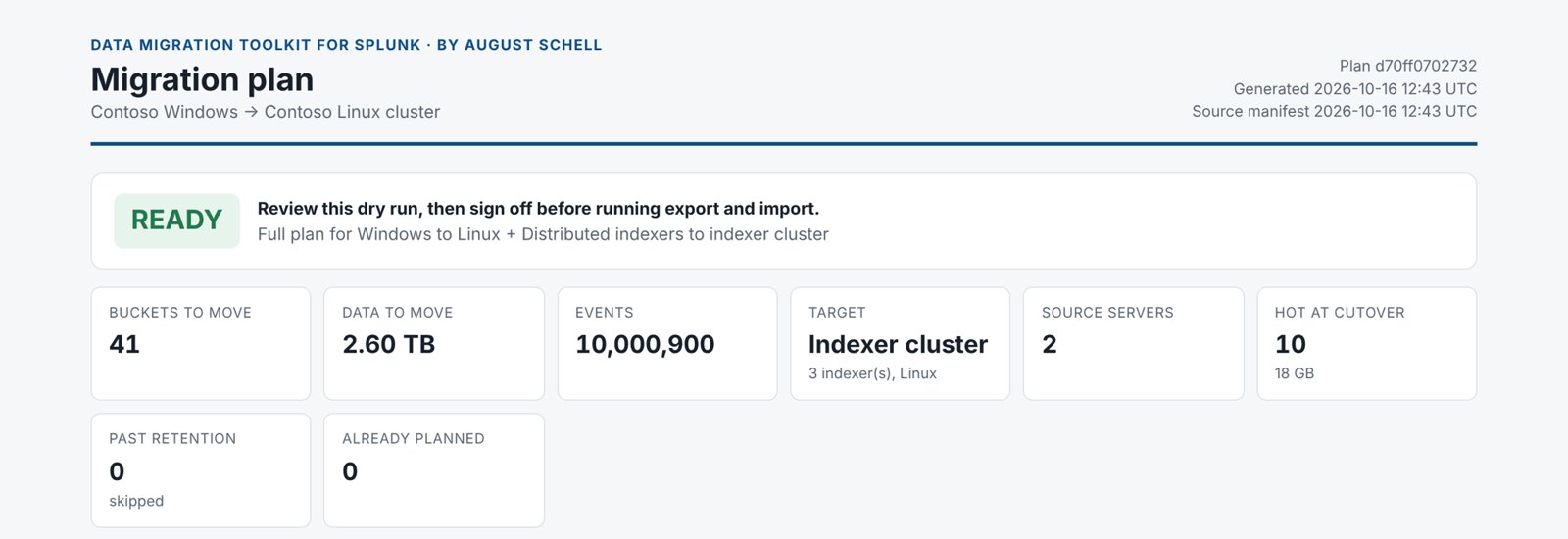
Nothing has moved. Have the plan reviewed and approved before going on.
Plan blockers and how to fix them
| Blocker says | Fix |
|---|---|
| Index X needs a lowercase name on the target | Add it to rename_indexes. |
| Index X would hold about N GB on H, over its maxTotalDataSizeMB | Splunk would delete the oldest data. Raise the limit in index_settings (or click the size button on the Setup and run page). |
| H needs about N GB but has M GB free | Add disk, add an indexer, or correct free_gb. |
| Moving buckets into an indexer cluster relies on behavior Splunk does not document | Do the lab check, then set cluster_adoption_validated to true. |
| Target Splunk X is older than source Y | Install a newer Splunk on the target. Buckets never move to an older version. |
| Index X uses SmartStore | Leave it out. |
| N corrupt buckets in the selected indexes | Repair them with splunk fsck, discover again, plan again. |
| Bucket(s) without rawdata journal in X | Repair or remove them on the source, or leave the index out. |
| Indexes A and B would both be X on the target | Rename one of them. |
| Index X would mix event and metric data | Rename one of the two indexes. |
| host_map has no entry for source indexer X | Add it to host_map. |
| Buckets are already on the target with the same index, ID and GUID | They were copied before. Plan with --previous, or leave the index out. |
| The manifest is redacted | Plan from the original, unredacted manifest. |
Cluster targets: the lab check
Copying buckets onto cluster peers relies on how the cluster adopts them, which Splunk does not document. Before the first migration to a cluster on a given Splunk version, prove it once in a lab:
- Build a small cluster (a manager and three peers) on the same Splunk version as the target.
- Migrate one or two small indexes into it with the steps in this guide.
- On the cluster manager, check Settings > Indexer Clustering: the replication factor and search factor are met.
- Search the peers’
splunkd.logfor quarantined or renamed buckets:index=_internal sourcetype=splunkd (quarantine OR "renamed"). There should be none. - Run validate: it should PASS.
- Set
"cluster_adoption_validated": truein target.json (or tick the box on the Setup and run page) and plan again.
8.4 Prepare the target
- Install Splunk on the target indexers, the same version as the source or newer, and the version you put in the target spec.
- Install the app on the target indexers (see Install from the command line or on cluster peers).
- Install the indexes app made by
--config-out(folderconfigs/ase_migrated_indexes):- Single server or indexers, not clustered: copy the folder into
$SPLUNK_HOME/etc/apps/on each target indexer. - Cluster: copy it into
$SPLUNK_HOME/etc/manager-apps/on the cluster manager and runsplunk apply cluster-bundle --answer-yes.
ase_migrated_indexes/local, save the file there asindexes.conf. - Single server or indexers, not clustered: copy the folder into
- Install the same apps and add ons on the target search head as on the source (CIM, Enterprise Security and so on), so data models rebuild while you copy.
- Copy the plan file (
plan-id.json) to every source and target indexer. - Stop Splunk on the target indexers for the first import. The target is not live yet, so this is safe. If
splunk stopanswersSystemd manages the Splunk service
, usesudo systemctl stop Splunkd(andsudo systemctl start Splunkdlater). After discovery of the target, the plan’s runbook shows the right command for each server. - Create the staging folder on each target and give it to the user that runs Splunk, for example
sudo chown -R splunk:splunk /data/smig_staging.
8.5 Export on each source indexer
On each source indexer listed in the runbook, with enough free space in the staging folder:
smig export --plan plan-id.json --server IDX01 --staging /data/smig_staging
smig export --plan plan-id.json --server WIN-SPLUNK01 --staging D:\smig_staging
--serveris the source indexer’s name exactly as the plan shows it (copy it from the runbook).- Export only reads. Splunk keeps running and indexing.
- It is resumable: if it stops, run the same command again and it continues.
--index main --index webexports only some indexes, for a test.- On a busy Windows source, export from a shadow copy so Splunk’s own work is never blocked:
--path-map "C:\Program Files\Splunk=E:\snap\Splunk".
The staging folder now holds target indexer\index\bucket.tar files, each with a .tar.json file holding its checksum.
8.6 Transfer to each target indexer
Each target indexer needs its own subfolder of the staging folder (staging/target indexer name/). Use whichever method suits you; import checks every file either way.
Option A: the built in transfer (serve and pull)
- Choose a shared secret of at least 16 characters and set it on both sides:
Note the value; type the same value on the target side.
export SMIG_TOKEN=$(openssl rand -hex 16); echo $SMIG_TOKEN
$env:SMIG_TOKEN = -join ((48..57) + (97..102) | Get-Random -Count 32 | ForEach-Object {[char]$_}); $env:SMIG_TOKEN - On the source, create a certificate for the transfer (or use one from your organization):
/opt/splunk/bin/splunk cmd openssl req -x509 -newkey rsa:2048 -nodes -days 30 \
  -keyout key.pem -out server.pem -subj "/CN=$(hostname)"
& "C:\Program Files\Splunk\bin\splunk.exe" cmd openssl req -x509 -newkey rsa:2048 -nodes -days 30 -keyout key.pem -out server.pem -subj "/CN=$env:COMPUTERNAME"
- Open port 8443 in the source’s firewall for the target indexers.
sudo firewall-cmd --add-port=8443/tcp # RHEL family; remove it after the migration
New-NetFirewallRule -DisplayName "smig transfer" -Direction Inbound -Protocol TCP -LocalPort 8443 -Action Allow
- Start the transfer server on the source. It runs until you press Ctrl+C, and only serves files, read only:
smig serve --staging staging folder --cert server.pem --key key.pem --token-env SMIG_TOKEN
- On each target indexer, set
SMIG_TOKENto the same value and pull its files:smig pull --from https://source host:8443 --host target indexer name \ --staging /data/smig_staging --token-env SMIG_TOKEN --insecure
--insecureaccepts the certificate you just made; the connection is still encrypted and the token is still required. With a certificate from your organization, use--ca-fileinstead. Pull is resumable. - When every target has pulled, stop serve with Ctrl+C and remove the firewall rule.
Option B: any copy tool
Copy the folder staging/target indexer name to the same place under the target’s staging folder, for example:
rsync -av /data/smig_staging/lnx-idx01/ lnx-idx01:/data/smig_staging/lnx-idx01/
robocopy D:\smig_staging\lnx-idx01 \\fileserver\share\smig_staging\lnx-idx01 /E /Z
Shared storage mounted on both sides also works: export straight into it.
From a Windows computer to Linux, without rsync: use pscp -r from PuTTY (it reads .ppk keys), WinSCP, or Windows’ own scp -r with a .pem key. See Example 5. Afterwards give the folder back to the Splunk user on the target: sudo chown -R splunk:splunk staging folder.
8.7 Import on each target indexer
- Make sure Splunk is stopped on this indexer:
splunk stopfor the first import. (During cutover on a live cluster, usesplunk offlineon one peer at a time.) - Check first. This reads the staging folder and the target disk, and changes nothing:
smig import --plan plan-id.json --host target indexer name --staging /data/smig_staging --dry-run
- Import:
smig import --plan plan-id.json --host target indexer name --staging /data/smig_staging
- Run it as the user that owns Splunk, or as root / Administrator; files are given to the owner of SPLUNK_HOME (or
--owner). splunk cmdswitches to the user inSPLUNK_OS_USER(usuallysplunk), even when you run it as root. That user must be able to write to the staging folder, because import records its progress there. Import checks this before it places anything and tells you thechownto run.- It checks every file’s checksum, never overwrites a bucket, and places each one complete or not at all.
- It is resumable.
--remove-stageddeletes each staged file once placed, to save space. - If Splunk is stopped but import still says it is running, see Troubleshooting.
8.8 Start the target and check it
- Start Splunk on the target indexers:
splunk start, orsudo systemctl start Splunkdwhere systemd runs Splunk. - Cluster: on the cluster manager, wait in Settings > Indexer Clustering until the replication factor and search factor are met. The cluster makes the extra copies now.
- Search the target:
| tstats count where index=* by index. Your indexes should be there with their history.
8.9 Validate
smig validate --source-manifest source.json --plan plan-id.json \
  --target-url https://splunk-new.example.com:8089 --target-user admin --target-insecure \
  --latest 2026-10-17 --html precopy-validation.html
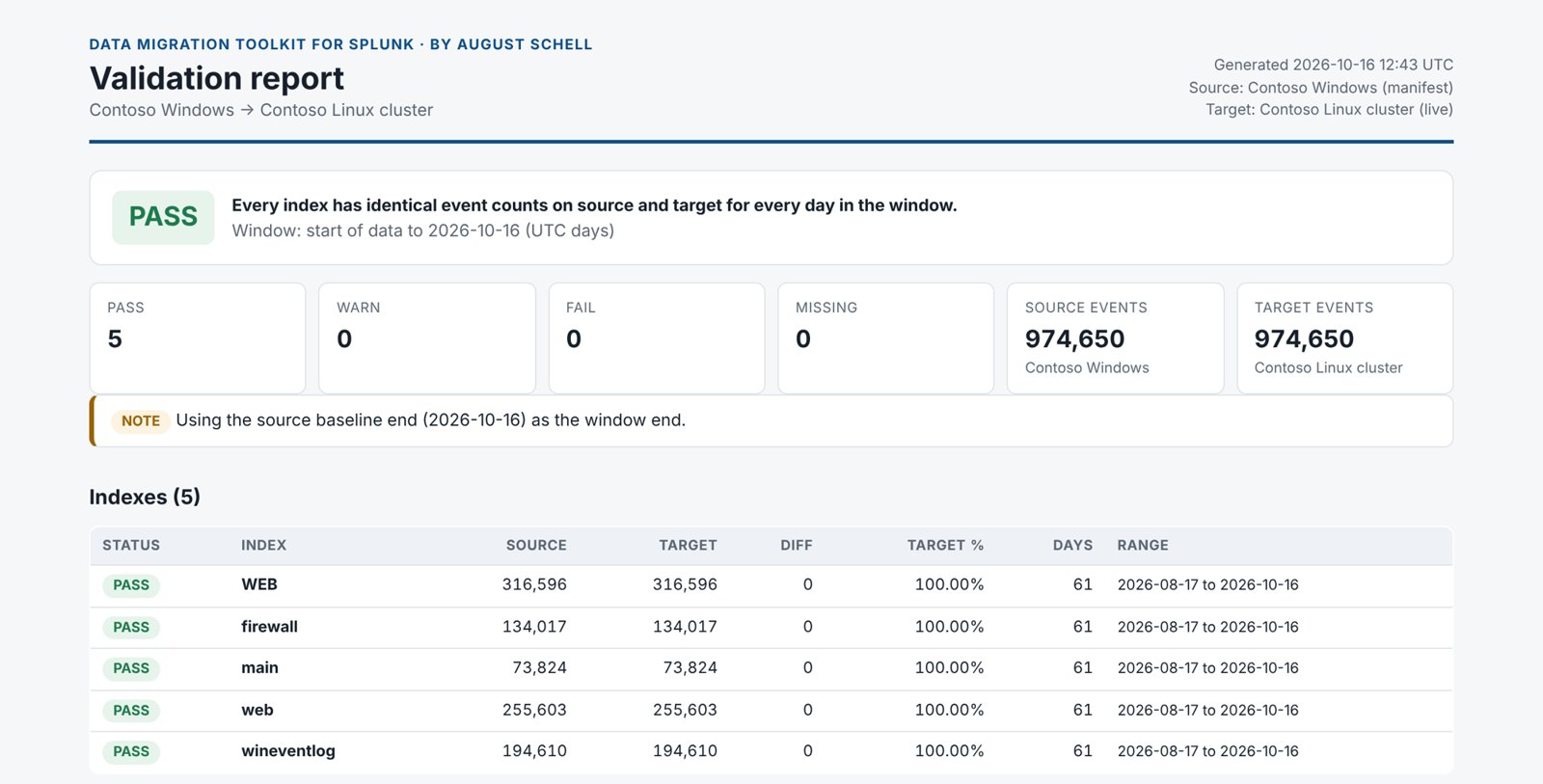
- It compares the event counts saved in the manifest with the live target, per index, per day.
--plancompares by the target index names (after renames) and only the indexes you moved.--latestis the first day not to compare: use the day discovery ran for the history copy, and the cutover time for the final check.- The verdict is PASS (every day matches), WARN, or FAIL (events missing).
--exit-codemakes smig exit with code 2 on FAIL, for scripts. - It also compares knowledge objects: apps, saved searches, dashboards, lookups, KV Store collections, roles and data models.
8.10 Cut over
The history is on the target and validated. Now switch over and copy the last piece. Do this in your change window.
- Point forwarders at the target. With a deployment server:
smig forwarder-app --target target.json --out ./configs
Copyconfigs/ase_outputs_cutoverinto$SPLUNK_HOME/etc/deployment-apps/on the deployment server, add it to the server classes that hold your old outputs app, remove the old outputs app from them, and runsplunk reload deploy-server. Without a deployment server, changeoutputs.confon each forwarder to point at the target indexers on port 9997. - Wait for the source to go quiet. On the source search head, run this until it returns no rows:
| tstats count where index=* earliest=-5m by splunk_server
Write down the time. It is the freeze time. - Roll hot buckets on the source (the one change to the source):
smig roll-hot --plan plan-id.json --url https://splunk-old.example.com:8089 --user admin --insecure --yes
- Discover again and plan only what is new (a delta plan):
smig discover --url https://splunk-old.example.com:8089 --user admin --insecure --out source-cutover.json
smig plan --manifest source-cutover.json --target target.json \
  --previous plan-id.json --exported state folders --html delta.html
--previousleaves out everything the first plan already moved.--exportedis optional: copy the_statefolder from each source indexer’s staging folder to where you run plan and list them, so buckets that were missing or failed in the first export are planned again. The delta plan gets a new ID, and its report has the exact cutover commands. - Export, transfer and import the delta exactly as before, with the new plan file. The target is live now, so import one indexer at a time: stop it (cluster:
splunk offline), import, start it, and on a cluster wait for it to be complete before the next one. Forwarders buffer data while an indexer is down. - Validate through the freeze time with the cutover manifest and the delta plan:
smig validate --source-manifest source-cutover.json --plan plan-delta id.json \
  --target-url https://splunk-new.example.com:8089 --target-user admin --target-insecure \
  --latest freeze time in epoch seconds --exit-code --html cutover-validation.html
--latesttakes a date (2026-10-24, meaning midnight UTC) or a time in epoch seconds. To turn the freeze time into epoch seconds:On the cutover day the target can show a few more events than the source: events that forwarders sent to the target after they switched. That shows as WARN, not FAIL, and is expected.date -d "2026-10-24 06:15" +%s
[DateTimeOffset]::new((Get-Date "2026-10-24 06:15")).ToUnixTimeSeconds()
- Keep the source running, untouched, until the rollback window ends. To roll back, point the forwarders back at it.
8.11 Track progress
smig status --plan plan-id.json --state /data/smig_staging
Shows per source indexer how many buckets are exported, and per target how many are placed. The Migration progress dashboard shows the same live, for every host that reports events.
9. Examples from start to finish
Each example is a complete migration. Replace the example names with your own. If you are new to the toolkit, start with Example 1.
| Example | Source | Target | Works mostly with |
|---|---|---|---|
| 1 | One Windows server | One Linux server | Setup and run page |
| 2 | Search head and two Linux indexers | New indexer cluster, three peers | Command line from a jump host |
| 3 | Two separate deployments | The cluster from Example 2, which already holds data | Command line |
| 4 | Any | Any (scoping only) | Online planner, nothing installed on the target |
| 5 | A Windows laptop | A Linux server in AWS | Setup and run page, PuTTY, a test run |
Example 1: One Windows server to one Linux server
WIN-SPLUNK01, Windows Server 2019, Splunk 9.1.2, everything on one server. Address https://win-splunk01.example.com:8089. About 600 GB in indexes main, wineventlog, firewall and Web.lnx-splunk01, Red Hat Enterprise Linux 9, Splunk 10.0.1 already installed in /opt/splunk, everything on one server. Address https://lnx-splunk01.example.com:8089. 2 TB free in /data.ds01.Part A: Install the app
- Download
ase_migration-0.7.2.tgz(see Download). - On the target. Open
https://lnx-splunk01.example.com:8000and sign in as admin. Click Apps > Manage Apps > Install app from file > Choose File, pick the package, click Upload. No restart is needed. - On the source. Install it the same way on
https://win-splunk01.example.com:8000. Splunk keeps indexing while it installs; the app only adds read only endpoints and an empty index.If your change policy does not allow new apps on the source, unpack the package intoC:\smigon WIN-SPLUNK01 instead and run smig with Splunk’s Python from that folder (step D1 shows how). Discovery then skips the on host checks, which is fine for a single server.
Part B: Describe the migration
- On the target’s Splunk Web, click Apps > Data Migration Toolkit for Splunk > Setup and run.
- 1. This server: This Splunk server is = the target (it receives the data). Migration name =
WIN-SPLUNK01 to lnx-splunk01. - Source deployment: Management address =
https://win-splunk01.example.com:8089. Admin user =admin. Type the source admin password in Password and click Save password. Leave Verify certificate unticked. - Click Test connection. It shows Connected: WIN-SPLUNK01, Splunk 9.1.2.
- 2. Target layout: Operating system = Linux. Layout = Single instance. Splunk version =
10.0.1. In the indexer row: Indexer host name =lnx-splunk01, Splunk home =/opt/splunk, Free disk GB =2000. - 3. Transfer and validation: Staging folder on the source =
D:\smig_staging. Staging folder on the target =/data/smig_staging. Leave the rest. - Click Save settings.
Part C: Discover and plan
- Under 1 Discover the source, click Run discovery. After a minute it shows Finished: 4 indexes, about 600 GB.
- Click Open report. Typical findings for this move:
- Source runs on Windows: expected.
- Windows paths in configuration and Windows only inputs: settings and WinEventLog inputs on the server itself. They do not stop the data move; recreate those inputs on a Windows forwarder.
- Accelerated data models: install the same apps on the target before copying (step D0).
- Under 3 Build the plan, click Build plan.
- Linux needs lowercase index names, so the page renamed
Webtowebfor you; the plan report lists it under Notes. The new server gets the same size limits and retention as the old one, from the generated indexes.conf. - The plan shows READY, the plan ID (for example
7de0786bf627) and 41 buckets. If yours shows BLOCKED, read the red list and see Build the plan; for a size limit, one click on Use the sizes the plan needs fixes it. - Click Open report and review it. Then click plan.json (saves as
plan-7de0786bf627.json), target.json and indexes.conf.
Part D: Copy the history (source stays live)
- D0. Prepare the target. On lnx-splunk01, over SSH:
sudo -u splunk mkdir -p /opt/splunk/etc/apps/ase_migrated_indexes/local /data/smig_staging
sudo -u splunk vi /opt/splunk/etc/apps/ase_migrated_indexes/local/indexes.conf   # paste the indexes.conf you downloaded
sudo chown splunk:splunk /data/smig_staging
Also install the same add ons as on the source (for example the Splunk Add on for Microsoft Windows) through Apps > Find More Apps. Then stop Splunk on the target for the import:sudo -u splunk /opt/splunk/bin/splunk stop
If that answersSystemd manages the Splunk service, usesudo systemctl stop Splunkdinstead, andsudo systemctl start Splunkdwherever this example starts Splunk. Step 1 on the Setup and run page shows the right command once you have run Discover the target. - D1. Export on the source. Copy
plan-7de0786bf627.jsontoC:\smigon WIN-SPLUNK01 (Remote Desktop copy and paste works). Open PowerShell as Administrator and type:cd C:\smig mkdir D:\smig_staging function smig { & "C:\Program Files\Splunk\bin\splunk.exe" cmd python3 "C:\Program Files\Splunk\etc\apps\ase_migration\bin\smig_cli.py" @args } smig export --plan plan-7de0786bf627.json --server WIN-SPLUNK01 --staging D:\smig_stagingIf you unpacked the package intoC:\smiginstead of installing it, use"C:\smig\ase_migration\bin\smig_cli.py"in the function. Export lists each bucket and ends with a line startingdone: 41 exported. It can take a while for 600 GB; it is safe to run while Splunk is working. - D2. Start the transfer on the source, in the same PowerShell window:
$env:SMIG_TOKEN = -join ((48..57) + (97..102) | Get-Random -Count 32 | ForEach-Object {[char]$_}); $env:SMIG_TOKEN
& "C:\Program Files\Splunk\bin\splunk.exe" cmd openssl req -x509 -newkey rsa:2048 -nodes -days 30 -keyout key.pem -out server.pem -subj "/CN=WIN-SPLUNK01"
New-NetFirewallRule -DisplayName "smig transfer" -Direction Inbound -Protocol TCP -LocalPort 8443 -Action Allow
smig serve --staging D:\smig_staging --cert server.pem --key key.pem --token-env SMIG_TOKEN
Write down the token the first line prints. Leave this window open: serve runs until you stop it. - D3. Pull on the target. On lnx-splunk01, copy the plan file to
/data/smig_staging, then:alias smig='sudo -E /opt/splunk/bin/splunk cmd python3 /opt/splunk/etc/apps/ase_migration/bin/smig_cli.py' export SMIG_TOKEN=the-token-from-D2 smig pull --from https://win-splunk01.example.com:8443 --host lnx-splunk01 \ --staging /data/smig_staging --token-env SMIG_TOKEN --insecure
When it finishes, go back to the source window and press Ctrl+C to stop serve. - D4. Import on the target (Splunk is stopped since D0):
cd /data/smig_staging
smig import --plan plan-7de0786bf627.json --host lnx-splunk01 --staging /data/smig_staging --dry-run
smig import --plan plan-7de0786bf627.json --host lnx-splunk01 --staging /data/smig_staging
The dry run reports how many buckets are ready to place and any conflicts (there should be none). The import ends withdone: 41 placedand0 errors, 0 conflicts. - D5. Start the target:
sudo -u splunk /opt/splunk/bin/splunk start
- D6. Validate the history. Sign in to the target’s Splunk Web, open Setup and run, set Validate up to (excluding) to the day you ran discovery, click Save settings, then Run validation. It shows PASS. Click Open report and keep it for the change ticket.
- D7. Data models. On the target, open Settings > Data models and wait until each accelerated model is close to 100% built.
Part E: Cutover (change window)
- E1. Point forwarders at the target. On lnx-splunk01, with the target.json you downloaded in Part C:
smig forwarder-app --target target.json --out /tmp/configs
Copy/tmp/configs/ase_outputs_cutovertoetc/deployment-apps/onds01. In the deployment server’s Forwarder Management, add the app to the server classes that have your old outputs app and remove the old outputs app from them. Then on ds01:splunk reload deploy-server. - E2. Wait for the source to go quiet. In the source’s Splunk Web, search over the last 15 minutes:
| tstats count where index=* earliest=-5m by splunk_server
When it shows no results, write down the time, for example2026-10-24 06:15. - E3. Roll hot buckets on the source. On lnx-splunk01:
smig roll-hot --plan /data/smig_staging/plan-7de0786bf627.json --url https://win-splunk01.example.com:8089 --user admin --insecure --yes
- E4. Plan the last piece (delta). On lnx-splunk01:
cd /data/smig_staging
smig discover --url https://win-splunk01.example.com:8089 --user admin --insecure --out source-cutover.json
smig plan --manifest source-cutover.json --target target.json --previous plan-7de0786bf627.json --html delta.html
It printsREADY delta plan a1b2c3d4e5f6with a few buckets. Copy the new plan file to WIN-SPLUNK01. - E5. Copy the delta. Repeat D1 to D4 with the delta plan file: export on the source, serve and pull, then on the target:
sudo -u splunk /opt/splunk/bin/splunk stop
smig import --plan plan-a1b2c3d4e5f6.json --host lnx-splunk01 --staging /data/smig_staging
sudo -u splunk /opt/splunk/bin/splunk start
The target is down for a few minutes; forwarders hold their data and resend it. - E6. Final validation. Turn the freeze time into epoch seconds and validate:
LATEST=$(date -d "2026-10-24 06:15" +%s)
smig validate --source-manifest source-cutover.json --plan plan-a1b2c3d4e5f6.json \
  --target-url https://lnx-splunk01.example.com:8089 --target-user admin --target-insecure \
  --latest $LATEST --exit-code --html cutover-validation.html
PASS (or WARN with a few extra events on the cutover day, from forwarders that switched early) means you are done. - E7. Keep WIN-SPLUNK01 running and untouched until the rollback window ends. Remove the firewall rule on it:
Remove-NetFirewallRule -DisplayName "smig transfer".
Example 2: Two indexers to a new indexer cluster
splunk-sh and indexers idx01, idx02, Linux, Splunk 9.2.1, about 8 TB.cm01, search head sh-new, peers peer01 to peer03, Linux, Splunk 10.0.1, replication factor 2, search factor 2./mnt/smig on all five indexers, so no copy step is needed.jump01 that reaches port 8089 on every server.- Install the app.
- On
idx01andidx02(no restart needed):sudo -u splunk /opt/splunk/bin/splunk install app /tmp/ase_migration-0.7.2.tgz -update 1
- On
cm01, for the peers (see Install on cluster peers):cd /opt/splunk/etc/manager-apps && sudo -u splunk tar xzf /tmp/ase_migration-0.7.2.tgz sudo -u splunk /opt/splunk/bin/splunk apply cluster-bundle --answer-yes
- On
sh-newthrough Splunk Web, for the dashboards. - On
jump01, unpack it (see Run smig without installing) and define the short name:alias smig='python3 ~/smig/ase_migration/bin/smig_cli.py' mkdir ~/mig && cd ~/mig
- On
- Discover the source from jump01:
smig discover --url https://splunk-sh:8089 --user admin --insecure --label "Old cluster" \
  --out source.json --html source.html
Opensource.html. Discovery reached both indexers through the search head, and checked their disks through the app on each indexer. If the indexers’ admin password differs from the search head’s, add--agent-user admin --agent-password-env IDX_PW. - Describe the target:
smig target-template --manifest source.json --out target.json
Edittarget.jsonso it reads:{ "schema": "ase.smig.target/1", "label": "New cluster", "os": "linux", "topology": "indexer_cluster", "splunk_version": "10.0.1", "hosts": [ {"name": "peer01", "role": "indexer", "splunk_home": "/opt/splunk", "free_gb": 9000, "receiving_port": 9997}, {"name": "peer02", "role": "indexer", "splunk_home": "/opt/splunk", "free_gb": 9000, "receiving_port": 9997}, {"name": "peer03", "role": "indexer", "splunk_home": "/opt/splunk", "free_gb": 9000, "receiving_port": 9997} ], "cluster": {"manager_uri": "https://cm01:8089", "replication_factor": 2, "search_factor": 2}, "host_map": {}, "paths": {"home": "$SPLUNK_DB/{index}/db", "cold": "$SPLUNK_DB/{index}/colddb", "thawed": "$SPLUNK_DB/{index}/thaweddb"}, "volumes": {}, "index_paths": {}, "rename_indexes": {}, "include_indexes": [], "exclude_indexes": [], "include_internal": false, "skip_frozen": true, "indexes_app": "ase_migrated_indexes", "cluster_adoption_validated": true } - Plan:
smig plan --manifest source.json --target target.json --html plan.html --config-out ./configs
It printsREADY full plan 4ab3c1e015b6. Openplan.html, check the capacity per peer, and get approval. The buckets are spread evenly over the three peers and renamed with the cluster’s naming. - Prepare the target. Copy
configs/ase_migrated_indexesto/opt/splunk/etc/manager-apps/on cm01 and runsplunk apply cluster-bundle --answer-yes. Install the same apps on sh-new as on the old search head. Copyplan-4ab3c1e015b6.jsonto/mnt/smig. Then put the cluster in maintenance mode and stop the peers:# on cm01 sudo -u splunk /opt/splunk/bin/splunk enable maintenance-mode --answer-yes # on peer01, peer02 and peer03 sudo -u splunk /opt/splunk/bin/splunk stop
- Export on idx01, then idx02 (they can run at the same time), straight onto the share:
alias smig='sudo -E -u splunk /opt/splunk/bin/splunk cmd python3 /opt/splunk/etc/apps/ase_migration/bin/smig_cli.py'
smig export --plan /mnt/smig/plan-4ab3c1e015b6.json --server idx01 --staging /mnt/smig
Use--server idx02on idx02. - Import on each peer, from the share (no transfer needed):
alias smig='sudo -E /opt/splunk/bin/splunk cmd python3 /opt/splunk/etc/apps/ase_migration/bin/smig_cli.py'
smig import --plan /mnt/smig/plan-4ab3c1e015b6.json --host peer01 --staging /mnt/smig --dry-run
smig import --plan /mnt/smig/plan-4ab3c1e015b6.json --host peer01 --staging /mnt/smig
Use--host peer02on peer02 and--host peer03on peer03. The three can run at the same time. - Start the cluster: start the three peers (
splunk start), then on cm01splunk disable maintenance-mode. In Settings > Indexer Clustering on cm01, wait until Search Factor is Met and Replication Factor is Met. The cluster is now making the second copy of every bucket, which takes a while for 8 TB. - Validate from jump01, using the day you ran discovery:
smig validate --source-manifest source.json --plan plan-4ab3c1e015b6.json \
  --target-url https://sh-new:8089 --target-user admin --target-insecure \
  --latest 2026-10-17 --html precopy-validation.html
The verdict is PASS. - Cut over as in 8.10: forwarder app, wait for quiet, then from jump01:
smig roll-hot --plan plan-4ab3c1e015b6.json --url https://splunk-sh:8089 --user admin --insecure --yes
smig discover --url https://splunk-sh:8089 --user admin --insecure --out source-cutover.json
smig plan --manifest source-cutover.json --target target.json --previous plan-4ab3c1e015b6.json --html delta.html
Export the delta on idx01 and idx02 to/mnt/smig. The cluster is live now, so import one peer at a time:sudo -u splunk /opt/splunk/bin/splunk offline smig import --plan /mnt/smig/plan-delta id.json --host peer01 --staging /mnt/smig sudo -u splunk /opt/splunk/bin/splunk start
Wait until cm01 shows the cluster complete again before the next peer. Then validate withsource-cutover.json, the delta plan and the freeze time, as in Example 1 step E6.
Example 3: Merge two deployments into an existing cluster
east: search head east-sh, indexers idx01, idx02. west: one server splunk01. Both have an index called firewall; west also has web, which should become web_west.cm01, sh-new, peer01 to peer03), already holding data.- Discover each source and the target from jump01. The text before
=later becomes each source’s ID:smig discover --url https://east-sh:8089 --user admin --insecure --label East --out east.json --html east.html smig discover --url https://splunk01:8089 --user admin --insecure --label West --out west.json --html west.html smig discover --url https://sh-new:8089 --user admin --insecure --label "Cluster today" --out target-now.json
- Create the target spec for both sources:
smig target-template --manifest east=east.json --manifest west=west.json --out target.json
Fill it in as in Example 2. The file already has asourcesblock with one entry per source ID; put per source settings there:"sources": { "east": {}, "west": {"rename_indexes": {"web": "web_west"}, "exclude_indexes": ["test"]} },firewallfrom both sources is merged into onefirewallindex on the target. - Plan with the target’s current state, so existing indexes, bucket IDs and sizes are respected:
smig plan --manifest east=east.json --manifest west=west.json --target target.json \
  --target-manifest target-now.json --html plan.html --config-out ./configs
In the plan, server names carry their source ID:east/idx01,east/idx02,west/splunk01. If two servers were cloned from the same image, the report lists GUID changes: their buckets get a new ID in their names so they never collide. - Prepare: deploy the new indexes from
configsthrough cm01 as in Example 2. Indexes that already exist on the cluster are left as they are. - Export on each source indexer with its full name from the plan:
smig export --plan plan-id.json --server east/idx01 --staging /mnt/smig    # on idx01
smig export --plan plan-id.json --server east/idx02 --staging /mnt/smig    # on idx02
smig export --plan plan-id.json --server west/splunk01 --staging /mnt/smig # on splunk01
- Import one peer at a time, since the cluster is live:
splunk offline,smig import ... --host peer01,splunk start, wait for the cluster to be complete, then the next peer. - Validate with both manifests;
--plancompares merged and renamed indexes correctly:smig validate --source-manifest east=east.json --source-manifest west=west.json --plan plan-id.json \ --target-url https://sh-new:8089 --target-user admin --target-insecure --latest 2026-10-17 --html validation.html
On a merged index, the target holds both sources’ events plus its own; validation compares only what you moved, by day. - Cut over each source with its own credentials, one at a time:
smig roll-hot --plan plan-id.json --source east --url https://east-sh:8089 --user admin --insecure --yes
smig roll-hot --plan plan-id.json --source west --url https://splunk01:8089 --user admin --insecure --yes
Then discover each source again (east-cutover.json,west-cutover.json) and build the delta with the same IDs:smig plan --manifest east=east-cutover.json --manifest west=west-cutover.json --target target.json \ --previous plan-id.json --html delta.html
Example 4: Scope a migration with the online planner
Use this before buying hardware or writing a statement of work. Nothing is installed on any Splunk server, and nothing leaves your computer.
- On your laptop, unpack the package and run discovery against the source search head (see Run smig without installing):
python3 ~/smig/ase_migration/bin/smig_cli.py discover --url https://splunk-sh:8089 --user admin --insecure \
  --no-agents --redact --out source-redacted.json
--redactreplaces host names and paths, so the file can be shared with a partner.--no-agentsskips the on host checks, because the app is not installed. - Open the online planner and drop
source-redacted.jsonon Drop your manifest.json here. - Read Source and Readiness: size, daily ingest, forwarders, findings.
- Under Target, choose Topology, Operating system, Splunk version, the number of indexers and their names, and fill in Bandwidth (Mbps) between the sites.
- The plan updates as you type: READY or BLOCKED, where the data goes, how many hours the copy takes, and the cutover copy time. If a size limit blocks it, click Raise size limits to fit.
- Click Download target.json to keep the target you designed, and Talk to an engineer if you want August Schell to run or review the migration.
Example 5: A Windows laptop to a Linux server in AWS (test run)
A small, complete rehearsal you can do in an afternoon: Splunk with some sample data on a Windows laptop, moved to a new Splunk server in AWS. It is also the quickest way to see every step before a real migration. Everything here comes from a real test run.
LAPTOP01, Windows 11, Splunk 10.6.0.5 in C:\Program Files\Splunk, the Splunk tutorial data in index tutorial (about 110,000 events, 10 MB). Behind a home or office router.203.0.113.25. Splunk in /opt/splunk, run by systemd as the user splunk. SSH as ec2-user with a key pair saved as splunk_key.ppk.t3.large (2 vCPU, 8 GB) and a 50 GB gp3 disk is plenty for a test. Security group: TCP 22, 8000 and 8089 from your own IP address only.Part A: Install the app on both
- Laptop. Open
http://localhost:8000and installase_migration-0.7.2.tgzunder Apps > Manage Apps > Install app from file. If that page answers 404, openhttp://localhost:8000/en-US/manager/appinstall/_uploaddirectly, or install from PowerShell as Administrator:& "C:\Program Files\Splunk\bin\splunk.exe" install app C:\Users\you\Downloads\ase_migration-0.7.2.tgz -auth admin:yourpassword
No restart is needed. - AWS. Open
http://203.0.113.25:8000. The Marketplace image signs in asadminwith the passwordSPLUNK-instance id, for exampleSPLUNK-i-0abc123def4567890. Install the app the same way. (That password is for Splunk Web only. SSH usesec2-userand the key.)
Part B: Describe the migration on the laptop
- On the laptop, open Apps > Data Migration Toolkit for Splunk > Setup and run.
- 1. This server = the source (it sends the data).
- Target deployment: Management address =
https://203.0.113.25:8089, Admin user =admin. Type the AWS admin password, click Save password, leave Verify certificate unticked, then click Test connection. It shows the server name and its Splunk version, and fills that version into Splunk version under Target layout. - 2. Target layout: Linux, Single instance. Indexer host name =
203.0.113.25(any name works; you type the same one at import). Splunk home =/opt/splunk. Leave Free disk GB empty: target discovery fills it in. - 3. Transfer and validation: leave both staging folders empty. The commands then use
C:\smig_stagingon the laptop and/opt/smig_stagingon the server. - Click Save settings.
Part C: Discover both sides and plan
- Under 1 Discover the source, click Run discovery. The report shows the
tutorialindex and Windows paths in configuration findings from Splunk’s own apps; those do not affect the data. - Under 2 Discover the target, click Run discovery. This tells the plan the server’s real Splunk version, its free disk, and that systemd runs Splunk there.
- Under 3 Build the plan, tick Target already holds data and click Build plan.
- If it says
Target Splunk 10.4.4 is older than source 10.6.0.5
: Splunk cannot read buckets written by a newer version, and Marketplace images are often a release or two behind. Upgrade the server (Part D), run Discover the target again, and build the plan again. - When it shows READY, click plan.json and indexes.conf. Your browser saves them in Downloads; move them to
C:\smig. If the browser added(1)to a name, rename the file toplan-id.jsonandindexes.conf, so the commands find them.
Part D: Upgrade Splunk on the server (only if the plan said so)
Over SSH as ec2-user, then sudo -i to become root. Get the download command from splunk.com (Splunk Enterprise, Linux, .tgz, Download via Command Line (wget)), for the same version as the laptop:
rpm -q splunk                       # "not installed" means it came from a .tgz, as on the Marketplace image
mkdir -p /root/splunk-upgrade && cd /root/splunk-upgrade
wget -O splunk-10.6.0.5-86587d4e3b27-linux-amd64.tgz "https://download.splunk.com/products/splunk/releases/10.6.0.5/linux/splunk-10.6.0.5-86587d4e3b27-linux-amd64.tgz"
systemctl stop Splunkd
systemctl is-active Splunkd         # wait until it says inactive
tar -czf splunk-etc-backup.tgz -C /opt/splunk etc
tar -xzf splunk-10.6.0.5-86587d4e3b27-linux-amd64.tgz -C /opt
chown -R splunk:splunk /opt/splunk
/opt/splunk/bin/splunk start --accept-license --answer-yes --no-prompt
/opt/splunk/bin/splunk version
splunk stop answers Systemd manages the Splunk service: always stop with
systemctl. The splunk start above runs the upgrade steps and then hands over to systemd as the splunk user. If a command seems slow, wait; stop it with Ctrl+C, never Ctrl+Z (that only pauses it in the background).Part E: Copy the data
- E1. Prepare the server (as root):
mkdir -p /opt/smig_staging /opt/splunk/etc/apps/ase_migrated_indexes/local
chown ec2-user /opt/smig_staging    # so pscp, signed in as ec2-user, can write there
- E2. Export on the laptop, in PowerShell as Administrator:
mkdir C:\smig_staging -Force
cd C:\smig
function smig { & "C:\Program Files\Splunk\bin\splunk.exe" cmd python3 "C:\Program Files\Splunk\etc\apps\ase_migration\bin\smig_cli.py" @args }
smig export --plan C:\smig\plan-id.json --server LAPTOP01 --staging C:\smig_staging
It ends withdone: 1 exported, 0 skipped, 0 missing, 0 errors. The--servername is the laptop’s Splunk server name, as shown in step 4 of the page. - E3. Copy to the server with pscp. A
.ppkkey is PuTTY’s format, which Windows’ ownscpcannot read. Install PuTTY once, then copy:winget install --id PuTTY.PuTTY -e $key = "$env:USERPROFILE\Downloads\splunk_key.ppk" $pscp = "C:\Program Files\PuTTY\pscp.exe" & $pscp -i $key C:\smig\plan-id.json C:\smig\indexes.conf ec2-user@203.0.113.25:/opt/smig_staging/ & $pscp -i $key -r C:\smig_staging\203.0.113.25 ec2-user@203.0.113.25:/opt/smig_staging/
Typeythe first time to store the server’s key. Prefer clicking? WinSCP does the same with the same .ppk. With a.pemkey, Windows’scp -i key.pemworks instead. - E4. Import on the server (as root). The
chownmatters:splunk cmdswitches to thesplunkuser, which must be able to write the import’s progress files in the staging folder.cp /opt/smig_staging/indexes.conf /opt/splunk/etc/apps/ase_migrated_indexes/local/ chown -R splunk:splunk /opt/splunk/etc/apps/ase_migrated_indexes /opt/smig_staging systemctl stop Splunkd alias smig='/opt/splunk/bin/splunk cmd python3 /opt/splunk/etc/apps/ase_migration/bin/smig_cli.py' smig import --plan /opt/smig_staging/plan-id.json --host 203.0.113.25 --staging /opt/smig_staging --dry-run smig import --plan /opt/smig_staging/plan-id.json --host 203.0.113.25 --staging /opt/smig_staging systemctl start Splunkd
The dry run says1 buckets ready to place ... 0 conflicts; the import places it.
Part F: Validate
- Back on the laptop’s Setup and run page, set Validate up to (excluding) to the day you ran source discovery, click Save settings, then Run validation. It shows PASS: every day of
tutorialhas the same count on both sides. - On the server’s Splunk Web, search
index=tutorial earliest=0 | stats count. It shows the same number as the laptop. - When you are done testing, stop or terminate the instance so it stops costing money.
10. Dashboards
Open Apps > Data Migration Toolkit for Splunk on the controller. The menu bar has:
| Dashboard | Shows | Filled by |
|---|---|---|
| Getting started | Whether progress events are arriving, and the next steps. | Any command |
| Setup and run | The Setup and run page. | You |
| Migration progress | Per plan: buckets exported, transferred and placed, per index and host, time left, and any problems. | export, pull, import |
| Plan review | Every plan built: status, blockers, sizes, capacity per indexer. | plan |
| Validation | Every validation: verdict, per index results, day by day detail, knowledge objects. | validate |
| Readiness | Every discovery: deployment summary and findings. | discover |
| Bucket lookup | The full history of one bucket. Type a bucket ID or name. | export, pull, import |
Each dashboard picks the newest run automatically; use the dropdown at the top for older ones. An empty dashboard says which command fills it. Commands run on this server report automatically; commands on other servers need HEC.
11. The online planner
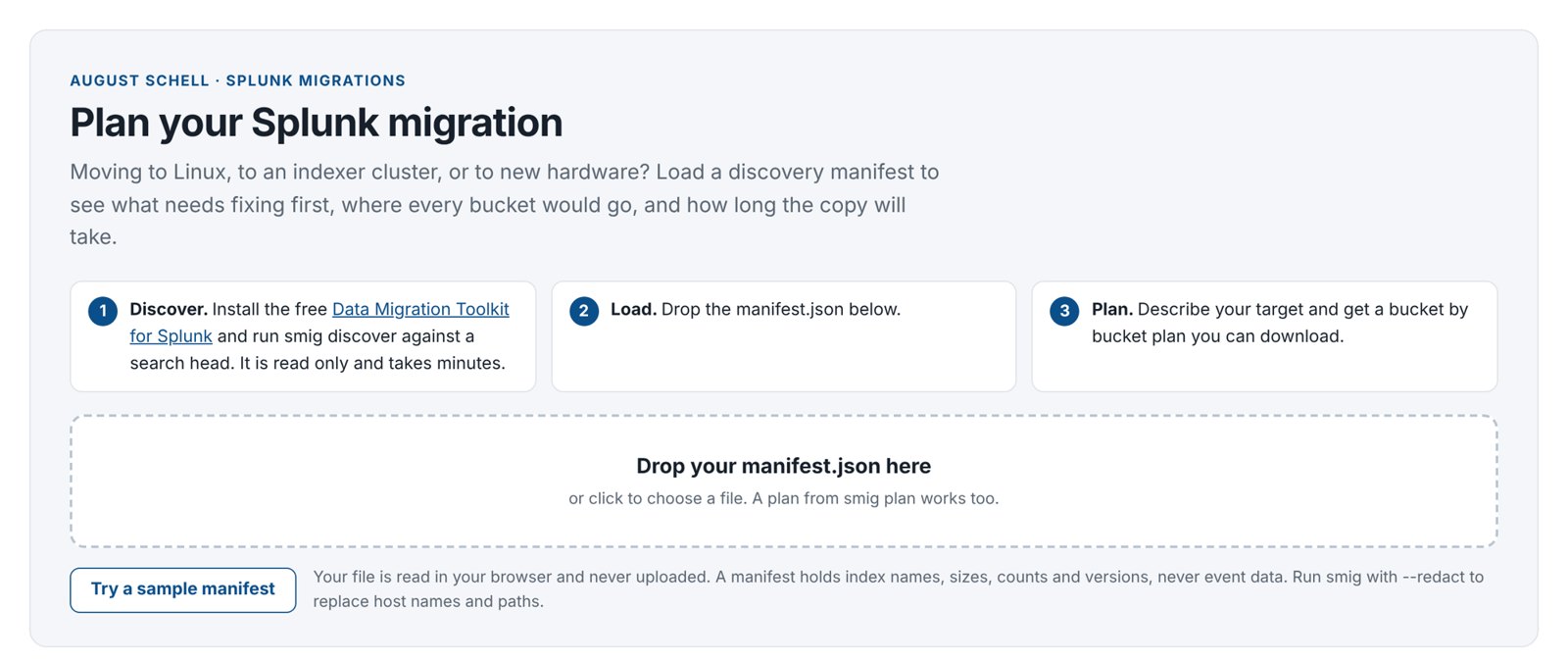
The online planner builds the same bucket by bucket plan as smig, in your browser. Your file is never uploaded. Use it to scope a migration before installing anything on the target, or to design the target spec with a form.
- Run discovery (from a laptop is fine) and get
source.json. Add--redactif you want to hide host names. - Open the planner and drop the file on Drop your manifest.json here, or click Try a sample manifest to explore.
- Review Source and Readiness.
- Fill in Target: Topology, Operating system, Splunk version, indexer count and Indexer names, cluster factors, Free disk per indexer (GB), Bandwidth (Mbps) and Link efficiency (%).
- Read the Bucket level plan: READY or BLOCKED, copy time, data per indexer, every bucket move and the runbook.
- Click Download target.json. Use it with
smig planon your side; bucket names and placement match the planner exactly.
Merging several deployments? Click Add another source and drop each manifest.
12. Troubleshooting
Connection problems
| Message | Cause and fix |
|---|---|
CERTIFICATE_VERIFY_FAILED | Splunk’s self signed certificate. Add --insecure (or --target-insecure / --source-insecure for validate), or pass your CA with --ca-file. On the Setup and run page, untick Verify certificate. |
unreachable, timed out, Connection refused | Port 8089 is blocked, or the address is wrong. Test from the same computer: curl -k https://host:8089 (or open it in a browser). |
401, Unauthorized, auth_failed | Wrong user or password, or the account is not admin. For indexer checks, the indexers may have their own admin password: use --agent-user. |
Setup and run: role needs ase_migration_admin | See Give another role access. |
Discovery
| Message | Cause and fix |
|---|---|
| On host checks skipped on N hosts | The app is not installed on those indexers, or their login differs. Install it, or pass --agent-user. Or run smig hostscan on each indexer and pass the files with --hostscan. |
| Agent version differs from the CLI | Install the same app version on every server and on your laptop. |
| Discovery ran against the cluster manager | Point --url at a search head. |
| Search may be incomplete | An indexer did not answer the search. Check it is up, then discover again. |
Export, transfer and import
| Message | Cause and fix |
|---|---|
buckets were not found (export) | They froze or moved since discovery. For a delta, pass --exported so they are planned again. |
SHA256 mismatch, copy the file again | The file was damaged in transit. Delete it and pull or copy it again. |
splunkd is running on this host | Stop Splunk on that indexer first. If it is stopped, a stale pid file or another program on port 8089 is the cause; check, then add --allow-running. |
already exists and differs; not overwritten | A different bucket is already in that place. Investigate before anything else; the toolkit will not overwrite it. |
bucket id ... is already used | The target made its own bucket with that ID. Discover the target, plan again with --target-manifest. |
Permission denied | Run import as the user that owns Splunk, or as root / Administrator. |
cannot write progress files to .../_state, or (before 0.7.2) PermissionError: ... '/opt/smig_staging/_state' | splunk cmd switched to the Splunk user (SPLUNK_OS_USER), which cannot write to the staging folder, often because a copy tool signed in as ec2-user created it. Run sudo chown -R splunk:splunk staging folder and run the import again. From 0.7.2 the import checks this first and places nothing until it is fixed. With 0.7.1 the bucket may already be in place: if ls shows it in the index folder, owned by splunk, it is complete (import only renames a fully checked bucket into place); just do not run that import again after Splunk has started. |
Failed to stop Splunkd.service: Access denied, or Systemd manages the Splunk service | Systemd runs Splunk on that server. Use sudo systemctl stop Splunkd and sudo systemctl start Splunkd, and systemctl is-active Splunkd to check it is inactive before an import. |
Unable to use key file, No supported authentication methods (pscp), or Identity file ... not accessible (scp) | The key path is wrong or empty, often because a new PowerShell window lost $key. Set it again. A .ppk key needs PuTTY’s pscp; a .pem key works with Windows’ scp. |
pull: 401 or 403 | The token differs between serve and pull. Set the same SMIG_TOKEN on both sides. |
Plan and validation
| Message | Cause and fix |
|---|---|
| Plan BLOCKED | See Plan blockers. |
Target Splunk X is older than source Y. Buckets cannot move to an older version. | Splunk cannot read buckets written by a newer version. Upgrade the target to the source’s version or newer (Example 5, Part D shows an upgrade in place), then build the plan again. Do not downgrade the source instead. |
Still older than sourceafter upgrading the target | The plan used the version typed in Splunk version under Target layout. Click Test connection on the target card (it fills in the real version), or run Discover the target and tick Target already holds data; discovery’s version wins. Then build the plan again. |
Target host X is not in the target manifest | The plan could not match the indexer name you typed with the server discovery found. From 0.7.2 an IP address or management address matches too, and a single server always matches. On a cluster, use the peers’ server names. |
| Longest bucket file path would be about N characters | Windows target only. Windows limits paths to 260 characters unless long paths are on. Use a short SPLUNK_DB such as D:\Splunk\var\lib\splunk. |
| Validation FAIL | Open the report and expand the index: it lists every day with missing events. Usually an import that did not finish (run smig status), or a bucket that froze on the target because of a size limit. |
| Validation WARN on the newest day | The source kept receiving data after discovery. Use --latest (or Validate up to) to stop at the discovery day or the freeze time. |
| Indexes listed as EMPTY | Those planned indexes had no events in the window. Not an error. |
Setup and run page and dashboards
| Symptom | Fix |
|---|---|
| A job shows lost | Splunk restarted while it ran. Run it again. |
| A job fails at once | Click Log. Usually a password or address on the left; use Test connection. |
| Dashboards are empty | Commands on other servers need HEC. Check the token’s allowed index is ase_migration, and run smig events-replay on servers that could not reach it. |
| A notice about custom JavaScript on the Setup and run page | Some Splunk versions show it for classic dashboards with scripts. The page works normally. |
13. Frequently asked questions
- Does the toolkit send data anywhere?
- No. There is no telemetry. Progress events go only to the HEC you set up. The online planner reads your file in your browser and never uploads it. Manifests hold names, sizes and counts, never event data.
- Will the source be changed?
- Only once: at cutover, roll-hot closes the newest buckets so they can be copied, which Splunk also does on its own. Everything else only reads it, so it stays your fallback.
- How much downtime is there?
- Searching the source keeps working throughout. The history is copied while the source is live. At cutover, forwarders switch to the target (they buffer, so nothing is lost), and the final top up usually takes minutes. Each target indexer is stopped briefly while its buckets are placed.
- How long does the copy take?
- The plan report estimates it from your bandwidth. As a rule of thumb, 1 TB over a 1 Gbps link at 70% efficiency takes a little over 3 hours.
- Can I move only some indexes?
- Yes: Only these indexes or
include_indexes. You can also do several smaller migrations, one after another. - Can I rename indexes?
- Yes, with
rename_indexes. Searches and dashboards that use the old name need updating. - What about apps, dashboards and saved searches?
- The toolkit moves indexed data. Install your apps on the target as usual; validation compares apps, saved searches, dashboards, lookups, KV Store collections, roles and data models and lists anything missing.
- Are data model accelerations copied?
- No. The target rebuilds them from the migrated data. Install the same data models on the target before copying, so they finish before cutover.
- Does it work with Splunk Cloud or SmartStore?
- Not yet. Both are out of scope for now.
- Can I run it in an air gapped network?
- Yes. The toolkit needs no internet and no extra software. The staging folder can travel on approved media; import checks every file.
- Is it supported?
- The app is free, open source (Apache 2.0) and supported by August Schell on a best effort basis. For help with a migration, talk to an engineer.
14. Glossary
- Agent
- The read only part of the app that answers discovery’s questions about an indexer’s disk: missing journals, file owners, paths in .conf files, free space. Reached on port 8089 at
/services/ase_migration/agent. - ase_migration
- The app’s ID, folder name and the name of the index where progress events are stored.
- Baseline
- The number of events per index per day, recorded at discovery. Validation compares the target against it.
- Bucket
- A folder on an indexer holding a slice of an index’s data for a time range: the compressed events (the journal) and the files that make them searchable. Buckets are what the toolkit moves.
- Hot, warm, cold, frozen, thawed
- The life of a bucket. Hot: still being written. Warm: closed, in the home path. Cold: older, in the cold path. Frozen: past retention, deleted or archived. Thawed: restored from an archive by hand. The toolkit moves warm and cold buckets, and hot ones after they are rolled at cutover.
- Bucket ID and GUID
- Every bucket has a number (its local ID) within its index on its indexer. In a cluster, the name also holds the GUID, a unique ID of the indexer that created it. The plan renumbers IDs or remaps GUIDs where they would collide.
- Capability
- A Splunk permission given to roles. The app adds
ase_migration_admin(Setup and run page) andase_migration_read(agent). - Indexer cluster
- A group of indexers (peers) that keep several copies of every bucket, managed by a cluster manager.
- Cluster manager
- The server that runs an indexer cluster and pushes apps to its peers (formerly called the master).
- Controller
- The search head you work from: where the Setup and run page and dashboards run. Usually the target search head.
- Cutover
- The switch from source to target: forwarders are pointed at the target, the newest data is copied, and the result is validated.
- Delta plan
- A plan built with
--previous: it holds only buckets that are new since the earlier plan. Used at cutover. - Deployment
- One Splunk environment: its search heads, indexers and supporting servers.
- Deployment server
- A Splunk server that sends configuration apps to forwarders. Used to switch forwarders at cutover.
- Dry run
- A step that only checks and reports. The plan is a dry run of the whole migration;
import --dry-runchecks one indexer. - Finding
- Something discovery noticed that may affect the migration, with a level: high, medium, low or info.
- Forwarder
- The Splunk agent on servers and devices that sends data to indexers.
- Freeze time
- The moment at cutover when the source stopped receiving data. The final validation runs up to it.
- HEC (HTTP Event Collector)
- A Splunk feature that accepts events over HTTPS on port 8088. The toolkit uses it to report progress to the controller.
- Indexer
- A Splunk server that stores data in indexes and answers searches.
- indexes.conf
- The Splunk file that defines indexes: their paths, size limit (
maxTotalDataSizeMB) and retention (frozenTimePeriodInSecs). The plan writes one for the target. - Journal (rawdata)
- The file in each bucket that holds the actual events. A bucket without one cannot be rebuilt.
- Manifest
- The file discovery writes (
source.json): every index, bucket, server, version and the daily event counts. No event data. - Online planner
- The page on augustschell.com that builds a plan from a manifest in your browser.
- Origin copy and replicated copy
- In a cluster, each bucket has the copy made by the indexer that created it (
db_folder) and replicated copies on other peers (rb_). The toolkit moves one copy of each bucket; the target cluster makes its own replicas. - Plan
- The file (
plan-id.json) that says, for every bucket, which target indexer gets it, in which folder and under which name. Export and import follow it exactly. A plan is READY or BLOCKED. - Blocker
- A problem that would lose data or break the move. A plan with any blocker is BLOCKED and cannot be used for import.
- Pre copy
- Copying the history while the source stays live, before cutover.
- Redact
- Replace host names and paths in a manifest so it can be shared. Plan the real migration from the unredacted file.
- Replication factor and search factor (RF, SF)
- How many copies of each bucket a cluster keeps, and how many of them are searchable.
- Roll hot
- Closing hot buckets so they become warm and can be copied. The one change the toolkit makes to the source.
- Runbook
- The ordered list of commands in the plan report, each with the server it runs on.
- Search head
- The Splunk server people search from. It sends searches to the indexers.
- Setup and run page
- The page in the app for setting up a migration and running discovery, the plan and validation with buttons.
- SHA256 checksum
- A fingerprint of a file. Export records one for every bucket; import refuses a file whose fingerprint does not match.
- SmartStore
- A Splunk feature that keeps most bucket data in object storage (such as S3). Not supported by the toolkit yet.
- smig
- Short for Splunk migration: the toolkit’s command line program,
smig_cli.pyin the app’sbinfolder. Each step is a smig command, for examplesmig discoverorsmig plan. - Source
- The deployment the data comes from.
- SPLUNK_HOME and SPLUNK_DB
- The folder Splunk is installed in (
/opt/splunk,C:\Program Files\Splunk), and the folder that holds index data (by defaultSPLUNK_HOME/var/lib/splunk). - Staging folder
- A folder where export puts the packaged buckets and import reads them from. One subfolder per target indexer.
- Target
- The deployment the data goes to.
- Target spec
- The file
target.jsondescribing the target: servers, layout, paths, renames, limits. - Validation
- Comparing event counts per index per day between source and target. Verdicts: PASS (all match), WARN (extra events, or within tolerance), FAIL (events missing), MISSING (index not on the target), EMPTY (no events in the window).
15. Getting help
The toolkit is free. August Schell engineers can scope, run or review a migration with you, from discovery through cutover and validation. Talk to an engineer.
Splunk is a trademark of Splunk LLC. The Data Migration Toolkit for Splunk is made by August Schell Enterprises, Inc. and is not affiliated with or endorsed by Splunk LLC.